
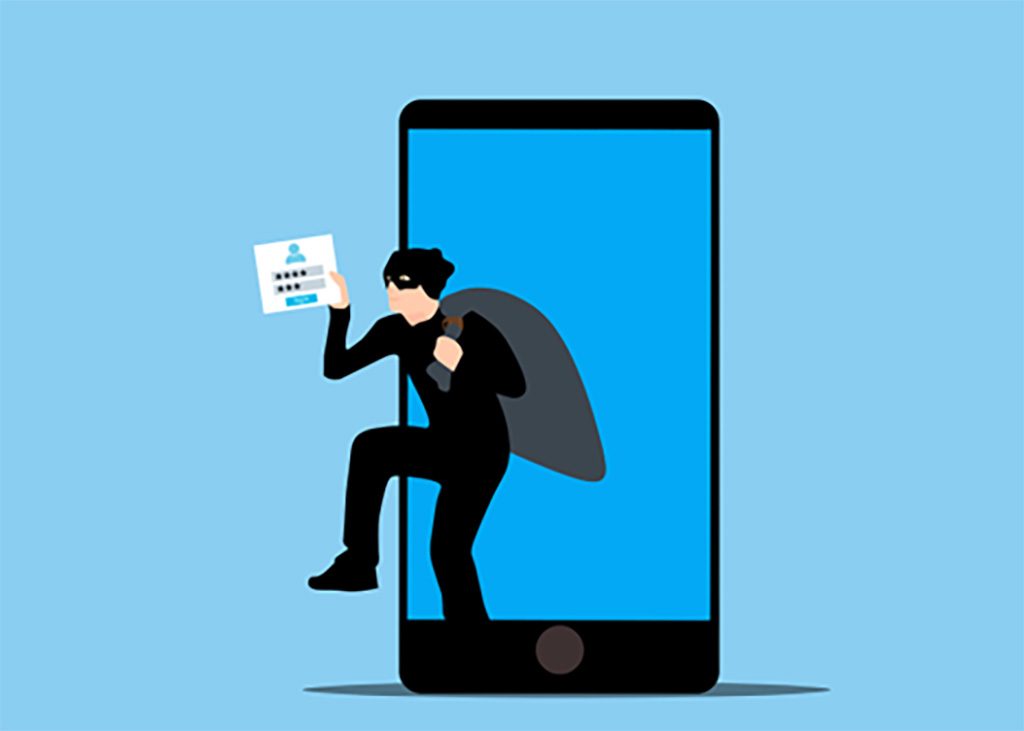
These days, everything in the cyber-world is a potential threat to your network, but the devices used by your remote workforce are the weakest links in your hardware. Employees that access your office network from a smartphone or tablet are more vulnerable than a home laptop or desktop computer, making them prime targets for cybercriminals.
Even some IT crews overlook the threat of mobile malware. When we at ITFIRM.COM conduct ‘Discovery’ meetings with prospective clients, it’s not unusual to find unprotected remote devices used for business. People focus on securing their laptops or desktops. But they don’t pay as close attention to cybersecurity for smartphones, tablets or even home-office computers.
In 2025, 80% of organizations say that mobile devices are critical to operations.
It would be foolish to assume that hackers have overlooked your company’s mobile devices - they are among the first things that criminals do look at, as they are often the path of least resistance. They set many traps to get users to infect their devices with malware. Let’s look at the most common mobile malware traps and how to avoid them.
What methods do attackers use to spread malware to mobile devices?
Mobile malware can arrive in various forms, from sneaky apps to deceptive links. Ignorance is not bliss here. Understanding the common traps is your first line of defense.
Phishing: This has remained the most common attack tactic for years. You receive a text or email appearing legitimate, often mimicking trusted brands. Clicking links or downloading attachments can lead to malware infection.
Unsecured Wi-Fi: Anyone who reads our IFIRM.COM blogs has seen repeated warnings about using public Wi-Fi networks, because they are often unsecured. Connecting to them without caution can expose your device to hackers. Avoid accessing sensitive information on public Wi-Fi.
If you want to do your online banking while sipping a latte at Starbucks, you’d better have a VPN (Virtual Personal Network) in place – unless you like kissing your money goodbye.
Malware-infected Apps: New apps are not necessarily safe. Some apps contain hidden malware that can steal data, display ads, or even control your device. Always research apps before downloading and only download from trusted sources.
SMS Scams (Smishing): This is the same as phishing but arrives through texting, using text messages to trick you. They lure you into clicking links or sharing personal information. Be wary of unexpected messages, especially those asking for sensitive info.
Fake Apps: These mimic or ‘spoof’ popular apps but are actually malware in disguise. They can steal your login credentials, financial information, or even control your device. Always verify app authenticity.
Adware: This more of an annoyance than a direct threat, BUT it can also potentially expose you to other threats. It often comes bundled with other apps.
How to protect against mobile malware?
Continuously Update: Be sure your devices’ operating systems and apps are updated on an ongoing, automatic basis. Install the latest security patches or turn on auto-update.
Never Trust Links and Attachments: Clicking blindly on links or downloading attachments – especially from unknown senders is the #1-way malware infects systems. If unexpected or suspicious, forward the email to your IT support to investigate.
Always Create Strong Passwords: Complex passwords for your remote devices and all your apps are first-line defenses. Also, consider using a password manager which can generate and save them for you.
Only Download from Safe App Stores: This should go without saying. Stick with official app stores like Google Play or the Apple App Store for your downloads and read reviews and check permissions before installing.
Never Trust Public Wi-Fi: Always, always use a VPN to encrypt your data when connecting to public Wi-Fi.
Perform Regular Data Backup: Back up the data on your devices regularly to protect your data from loss or corruption. Use these backup destinations:
Local Backups: Back up your phone data to your computer and your computer to reliable office backups. This is another added layer of protection.
Cloud Backups: Use cloud storage services to back up your data regularly. This ensures you have a copy of your important files even if your phone is lost, stolen, or damaged.
Cybersecurity Software: Look into reputable mobile security apps for added protection.
Of course, do not overlook the obvious:
Lock Your Devices: Always set a strong password, fingerprint, or facial recognition lock. Avoid simple patterns that can be easily guessed.
Do NOT use Public Charging Stations: Avoid using public USB charging stations. These can be compromised, allowing hackers to access your device.
Limit Your App Permissions: Don’t just throw everything you see on there. When installing apps, carefully review the requested permissions. Deny unnecessary permissions to safeguard your privacy and data. For instance, a flashlight app doesn't need access to your contacts.
Regularly Audit Your Apps: Periodically review the apps on your phone. Uninstall apps you no longer use to reduce potential vulnerabilities.
Take Charge of Your Digital Life
These tips can significantly enhance your smartphone's cybersecurity. Remember, an ounce of prevention is worth a pound of cure. Stay vigilant, informed, and proactive in protecting your digital life.
All your remote devices are powerful tools, but they are also potential targets for cybercriminals. By understanding the threats and taking proactive steps, you can prevent catastrophe. Enjoy the benefits of mobile technology without compromising your (or your company's) security!
Frequently Asked Questions
What is an example of a strong password?
One great method is to create a phrase and then make it a long anagram using alternate letters, numbers and symbols. Like this:
ImMLw0&23o&i5Mc
This password is based on the phrase “I married my loving wife (or husband) on August 23 08 in Santa Monica California” – using symbols as substitutes for numbers and letters, and vice versa – such as using 5 or $ for S or & for 8 and alternating between upper and lower case letters.
Running the password above through ‘Password Monster’ shows the ‘time to crack password: 9 Trillion Years,’ whereas ‘123456’ takes ZERO seconds.
How do I manage too many passwords?
Your best bet is a Password Manager, because it can not only remember, but create complex passwords for you, and juggling dozens of passwords is a pain. Every time you enter a password for the first time, it will give a prompt asking if you want to be saved (say yes). Then, when you return to that login page, it will offer to fill it in for you. This way, you can enjoy complex passwords, and you only need to remember ONE: the one for the Password Manager.
Wired online offers a ‘Best Password Managers’ list to give you some ideas.
What is the downside of using password manager?
The downside is forgetting the password for your password manager. This is a way to put all your eggs in one basket, so you’d better not lose the basket! If you lose your master password or other identifying information, you could lose access to all of their passwords at once. Likewise, if your master password fell into the wrong hands, it would allow a bad actor to access any account saved in the password manager.
Password managers are a target for hackers. It's not easy to login using multiple devices. If the main password is used/typed/saved on a computer with malware, your main password can compromise all your other passwords controlled by the PM - all your passwords are only as secure as your master password.
How does automated patching work?
It’s simple: Patch automation tools perform regular scans of an environment—or specific groups of devices—to identify which are missing patches. They can then download missing patches from individual vendors, such as Adobe, Apple, Java, or Windows.
How secure is your network?
As a longstanding, reputable member of the Charlotte IT Support community, ITFIRM.COM offers a FREE, no-risk network and cybersecurity assessment. We perform a non-intrusive scan that allows us to deliver a comprehensive report of the state of your system and its vulnerabilities that is yours to keep. There are no strings attached, and you are under no obligation to ever use our Managed IT services.
The two best defenses are next-generation network cybersecurity to protect your data from theft, and a top-notch Managed Services Provider (MSP) to ensure continued reliability and defenses against newly emerging threats.
We put our 100% Money Back Guarantee in writing, so there is no risk in trying us out. Because we do not require a ‘hard’ contract, our clients can fire us at any time with 30 days’ notice. We have to be good.
Among the Managed IT services we provide:
IT HelpDesk Service
Onsite IT Support
Cybersecurity
Cloud migration and management
Email migration services
Backup and disaster recovery
VoIP phone systems
IT disposition and recycling
Office moves
White label services (IT to IT)
Planning an Office Move?
Contact ITFIRM.COM today! We have the experience to ensure a seamless transition. After the office move, your employees will arrive at the new location to find their IT infrastructure ready and open for business!
For more information on office moves, or to receive your FREE no-risk network and cybersecurity assessment, just fill out the form on this page or call us at:
704-565-9705
