
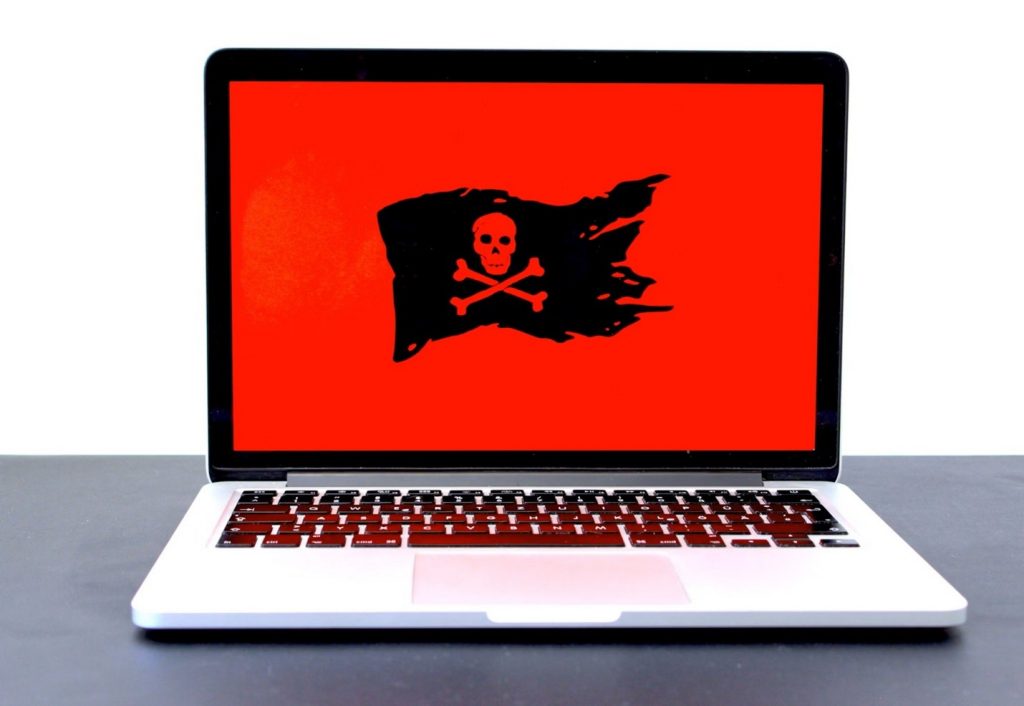
Malware doesn’t trot up to your network waving a sign that says ‘Bad Guy.’ You have to know what to look for. Malware can not only hurt your computer or phone, but it can also make your devices run slow and steal your info. You should ask your IT Services team what cybersecurity measures they have in place to protect you.
Below are some useful tips on how you can spot hidden malware lurking on your devices.
What is malware in simple words?
Just take a look at the etymology of the word: The root prefix ‘mal’ means ‘bad,’ "evil," ‘wrong,’ or ‘ill’. Malware is short for ‘malicious software’ - a program that tries to harm your device or data. The most common types of malware are created by hackers looking to cause some kind of trouble, from theft to simply wreaking havoc.
There are quite a few types of malware, but let’s look at the three most common – the malware you are most likely to encounter:
1: Viruses and Worms
These are very common. Viruses and worms will spread from device to device once introduced into a network. They can destroy your files or make your computer run extremely slow, which is often your first indication of malware.
2: Trojans
Trojans, as the name implies, mimic the story of the Trojan Horse. They pretend to be good programs, but they are a wolf in sheep’s clothing. They masquerade as legitimate software to trick users into downloading malicious software, which can be used to:
Capture data
Gain unauthorized access to networks
Delete, modify, or capture data
Harvest a device as part of a botnet
Spy on a device
3: Ransomware
Phishing is the most common form of attack, but year after year, Ransomware tends to top the list of the malware phishing delivers. It will lock and encrypt your files, then demand a ransom in cryptocurrency to decrypt them.
How do you get malware?
Malware finds its way into your device and network in many ways Here are the top 3:
Phishing: In this, the #1 tactic for spreading malware, hackers send emails with malicious links or attachments, with an enticement for you to click on them and release the malware. It’s wise to avoid opening emails from people you don’t know, and never EVER click on suspicious links or attachments. Hackers have even pretended to be divorce lawyers for the victim’s spouse – pretending to send divorce paperwork.
Downloading Files: While there is plenty of ‘fun’ looking stuff available to download on the internet, sometimes it might have malware in it. Be careful what you click on!
Visiting Bad Websites: Sometimes, you don’t even have to download anything. Some websites can put malware on your device just by visiting them.
How do I tell if I have malware?
Like we said, it doesn’t knock on the front door holding a sign: it’s sneaky. For the sake of brevity, we will take Ransomware out of the discussion because you usually know you have it the moment you get it. There are some signs to look for in the more stealthy varieties. The top 3 are:
1: Your Device Becomes Sluggish: Usually, this is the very first sign: If your device is acting really slow, it may have malware. Malware can also drain your battery.
2: You Get Suspicious Pop-ups: You start getting many more pop-ups than usual, even though you use blockers.
3: Unusually High Data Usage: High data usage generally means slower internet speeds. Some malwares can easily max-out your data storage.
How do I check to see if I have malware?
Fortunately, searching for malware on your device is easy, and you don’t need to be a cybersecurity expert to do it:
Antivirus Software
If you don’t already have this, you need to get it. Antivirus (AV) programs can scan your device for malware, then find and remove it
Check Your Apps
Examine all of the apps on your device and delete any that you don’t remember installing – or that you don’t use.
Task Manager
Your Task Manager is extremely useful. Open it and look for programs that use a lot of resources or have weird names that you don’t recognize.
Browser
Look at your browser extensions and remove any that you do not use or recognize.
What to do after finding malware?
So, you’re pretty sure you have found malware. The first step is to not panic. Here are the steps you take next:
Run a Full AV Scan
Use your antivirus to run a full scan of your device. It’s wise to regularly do partial scans of your most used apps and files. A full scan takes a bit longer.
Update Your Software
You should continuously update your software whether you think you have malware or not. It’s critical for good cybersecurity. Make sure all of your programs and your operating system are current.
Change Your Passwords
You should regularly change your passwords, but once you have malware, do it immediately for all your valuable accounts.
Establish Regular Data Backups
Yet another thing you should already be doing. ALWAYS back your important files up to a safe location, such as a cloud service.
How can malware be prevented?
There is no ‘magic pill.’ The best scenario is tight cybersecurity that does not let malware onto your device at all. Here are your protections:
Regular Updates
As we mentioned above, always keep your operating system and applications updated at all times. Updates usually come with security patches to guard against the newest threats.
Be Wary, and Don’t Click!
You should never click on any unusual email link or attachment, and don’t download any file unless you are sure it is safe.
Create Stronger Passwords
Make your password long and hard to guess. Use different passwords for each account. For ease, look into a password manager, which can generate and remember highly ‘crack-proof’ passwords.
Use AV (Antivirus) Software
As stated above, this is a given. If you don’t have AV software in place, you are just asking for trouble. Keep good antivirus software on your device and run scans often.
Protect Yourself Online
No malware could get in your system if there were no internet, but we all use it everyday for business and personal reasons. Malware can be scary, but you can protect yourself. Always be careful online and keep your devices safe. If you need help with malware or want to learn more about online safety, contact us today. We’re here to help you stay safe in the digital world!
Frequently Asked Questions
What is an example of a weak password?
Weak passwords are anything that’s easily guessable and includes simple sequences or personal information. The world’s most common password is also the #1 weakest: ‘123456.’ This lame password takes less than a second for hackers to crack – it’s literally the first thing they try.
How do viruses and worms differ?
Although they are similar in their effect, they differ primarily in how they spread and replicate. Viruses require a host file or program and user interaction to spread, while worms can replicate and spread independently, often throughout networks.
What is the very best antivirus?
‘Best’ is subjective, and while some AV sellers are well known, that might only be because they have better advertising. Do your homework. PCMag lays out their picks for The Best Antivirus Software for 2026.
What is the number 1 best free antivirus?
First of all, remember the old saying, “You get what you pay for.” SafeWise selects Bitdefender as their Best Overall. Bitdefender has some of the best protection out of all the free virus protection and malware protection software we researched. Its free antivirus protection software includes protection from viruses, malware, ransomware, zero-day exploits, and malicious websites.
How secure is your network?
As a longstanding, reputable member of the Charlotte IT Support community, ITFIRM.COM offers a FREE, no-risk network and cybersecurity assessment. We perform a non-intrusive scan that allows us to deliver a comprehensive report of the state of your system and its vulnerabilities that is yours to keep. There are no strings attached, and you are under no obligation to ever to use our Managed IT services.
The two best defenses are next-generation network cybersecurity to protect your data from theft, and a top-notch Managed Services Provider (MSP) to ensure continued reliability and defenses against newly emerging threats.
We put our 100% Money Back Guarantee in writing, so there is no risk in trying us out. Because we do not require a ‘hard’ contract, our clients can fire us at any time with 30 days’ notice. We have to be good.
Among the Managed IT services we provide:
IT HelpDesk Service
Onsite IT Support
Cybersecurity
Cloud migration and management
Email migration services
Backup and disaster recovery
VoIP phone systems
IT disposition and recycling
Office moves
White label services (IT to IT)
Planning an Office Move?
Contact ITFIRM.COM today! We have the experience to ensure a seamless transition. After the office move, your employees will arrive at the new location to find their IT infrastructure ready and open for business!
For more information on office moves, or to receive your FREE no-risk network and cybersecurity assessment, just fill out the form on this page or call us at:
704-565-9705
