
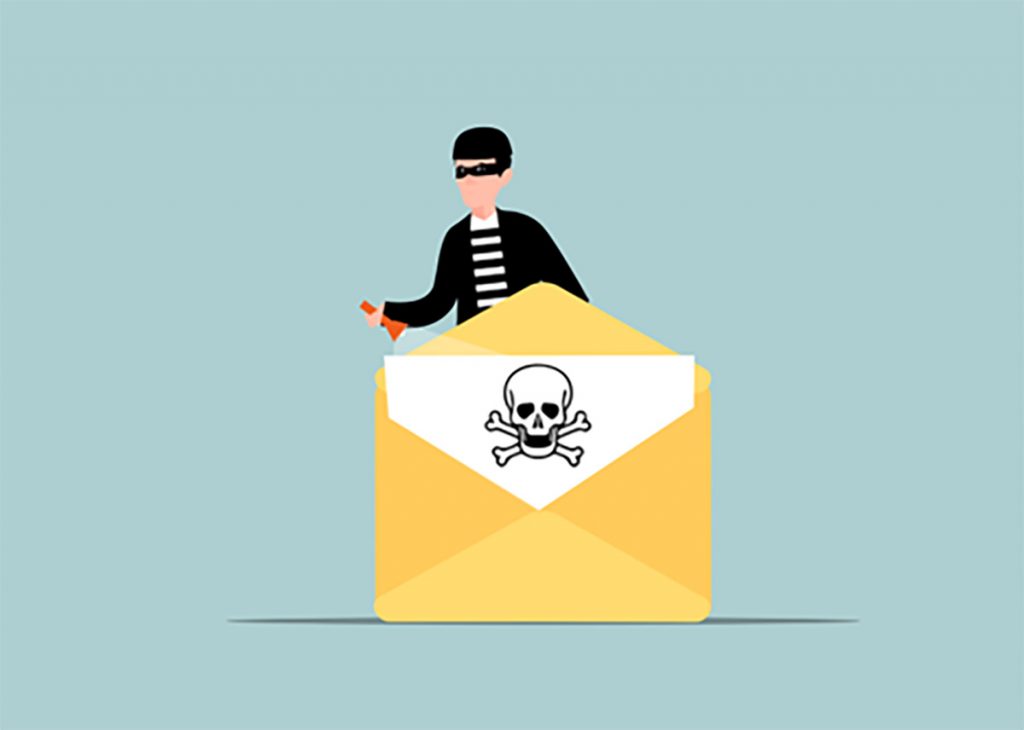
Baby Boomers and some of the elders of Generation X remember how we conducted business without email, but it is essential today. It’s also the #1 target for cybercriminals, and their attack strategies and tactics are increasing in sophistication, especially with AI. This means enhancing your email cybersecurity has never been more critical.
An overwhelming 95% of IT professionals say cyberattacks have become more sophisticated. Over half (51%) have already seen AI-powered attacks against their organization.
It is imperative to take proactive measures if you want to protect your sensitive information and prevent unauthorized access and maintain communication integrity. Here are a few simple steps to enhance your email security.
Whatever form of IT you use, from an in-house department to an outsourced Managed IT Services firm – they can easily set all this up for you, if they haven’t already.
Strong Passwords
This necessity comes up often in our ITFIRM.COM blogs because passwords are the first line of defense for your email accounts. A weak password is like an open invitation for cybercriminals. To enhance your email security, use strong, unique passwords that are difficult to guess.
1: Create Complex Passwords
Always include a mix of:
Letters (both uppercase and lowercase)
Numbers
Special characters ($, @, & etc.)
NEVER use common words or phrases. Also, avoid easily guessable information like your name or birthdate. A complex password makes it harder for attackers to gain access to your email account.
Use a Password Manager
It’s a challenge to remember even a few complex passwords. A password manager helps you generate and store unique passwords for all accounts. With a password manager, you only need to remember one master password. This simplifies the process while enhancing cybersecurity. Plus, when you go to an app or online account that requires a logon, a window will pop up asking if you want to use your stored password, simplifying the process.
NEVER Reuse Passwords
Don’t let hackers get the ‘keys to the kingdom’ by cracking one password. When you reuse passwords across many accounts, you just make things easier for hackers. If they crack one, they have them all – it’s like a fire sale on your information. Make sure each of your email accounts has a unique password. This prevents a single breach from spreading.
2: Adopt MFA (Multi-Factor Authentication)
Across the board, this is encouraged by every cybersecurity professional. MFA, or at least Two-Factor Authentication (2FA) adds an extra layer of security to your email accounts. Even if someone gets hold of your password, they won’t be able to access your account. They would need the second factor of authentication to do that.
Select an MFA or 2FA Method
Hands down, the most common MFA/2FA methods are SMS codes, which send a verification code to your phone or email. SMS codes. Also used are authenticator apps and hardware tokens. Authenticator apps generate time-sensitive codes on your device. Hardware tokens provide physical devices that generate code. Choose the method that best suits your needs.
Establish MFA/2FA for all your email accounts. Most email providers offer this feature and setting it up usually takes just a few minutes. This simple step significantly improves your email security.
3: Be Suspicious of Email Attachments and Links
These constitute the main hacker inroad to your system: Email attachments and links are THE most common vehicles for malware and phishing attacks. Clicking on a malicious link or attachment can give attackers access to your system. Exercise caution to protect your email security.
Always Verify the Sender
Before you open an attachment or click on a link, verify the sender’s identity. If you receive an unexpected or strange email from someone you know, contact them. But do it through a different channel to confirm they sent it. For emails from unknown senders, exercise extra caution. Engaging blindly with the content can have catastrophic consequences.
Scan Attachments
Use your antivirus software to scan suspicious email attachments before opening them –This helps detect and block any malicious content before it can harm your system. Many email providers also offer built-in scanning features. But having your antivirus software adds an extra layer of protection. The exception may be when you speak or IM with an associate and they say they are sending a link or attachment and it shows up shortly.
NEVER Click on Suspicious Links
That would be a disaster waiting to happen. Users clicking blindly on email links or attachments is a nightmare for cybersecurity providers. Be wary of links that seem out of place or too good to be true. Hover over the link to see the URL before clicking. If the URL looks suspicious or unfamiliar, don’t click on it. Instead, navigate to the site directly through your browser.
4: Update Your Email Software Regularly
This is a smart move in general. You can set updates and patches to be performed automatically (see below). Software updates often include cybersecurity patches that address vulnerabilities in your email system. Make sure that when email software updates are available, they are installed immediately. This ensures you have the latest protections against known threats.
Regularly Check for Updates
Even if you have them automated, it’s good to manually check for updates -. This ensures you don’t miss any important security patches. It also helps keep your email client running smoothly and securely.
5: Use Encryption Wherever Possible
In today’s world, encryption is a critical protection. You can easily set up encryption for your emails, and it will add a layer of protection to your emails. It encodes the content, making it readable only by the intended recipient. This ensures that even intercepted email information remains secure. For added security, consider using third-party encryption tools that offer end-to-end encryption.
Inform your Recipients About Encryption
Although many email platforms will automatically decrypt emails for the reader, make sure recipients are aware and know how to decrypt them. Provide clear instructions about how to access the encrypted content securely.
6: Monitor Email Activity
Look for unusual activity. Detecting suspicious behavior early can only happen if you regularly monitor what’s going on with your email. By keeping an eye on your account, you can take swift action if something seems off. It is important to do this on a regular, ongoing basis.
Establish Activity Alerts
Many email providers offer activity alerts that will notify you of unusual login attempts or changes to your account settings. Take advantage and check your email settings: Enable these alerts to stay informed about your account’s security status.
Respond Quickly to Suspicious Activity
The crooks aren’t wasting time, so neither should you. If you detect any suspicious activity in your email account, get in it immediately. Change your passwords, review your security settings, and consider enabling extra security measures.
Frequently Asked Questions
Is MFA or 2FA better?
By virtue of the number of protective layers, MFA is technically more secure than 2FA. MFA allows a user to use more than one type of authentication method, whereas 2FA only allows you to add one type of authentication factor on top of your username and password.
What is the strongest authentication factor?
The Gold Standard is Biometric (fingerprint, retinal scan). Possession-based authentication factors (a security key, mobile phone, or smart card) is another strong means of securing a network or application against unauthorized access.
Can a password manager be hacked?
As we often say, anything can be hacked, even password managers, as evidenced by the LastPass breach in 2022.
Can I set an alert for an email in Outlook?
Yes, and it’s easily done. Just follow these steps: “Go to "File" > "Options" > "Trust Center" > "Trust Center Settings". Under "Programmatic Access," choose to be warned about suspicious activity when your antivirus software is inactive or out-of-date.
Additionally, you can set the alert level to "Warn me about suspicious activity" (default), or "Always warn me about suspicious activity" for maximum security (preferred). Stay away from “Never warn me about suspicious activity" (not recommended) – unless you are an unwise person.
How secure is your network?
As a longstanding, reputable member of the Charlotte IT Support community, ITFIRM.COM offers a FREE, no-risk network and cybersecurity assessment. We perform a non-intrusive scan that allows us to deliver a comprehensive report of the state of your system and its vulnerabilities that is yours to keep. There are no strings attached, and you are under no obligation to ever use our Managed IT services.
The two best defenses are next-generation network cybersecurity to protect your data from theft, and a top-notch Managed Services Provider (MSP) to ensure continued reliability and defenses against newly emerging threats.
We put our 100% Money Back Guarantee in writing, so there is no risk in trying us out. Because we do not require a ‘hard’ contract, our clients can fire us at any time with 30 days’ notice. We have to be good.
Among the Managed IT services we provide:
IT HelpDesk Service
Onsite IT Support
Cybersecurity
Cloud migration and management
Email migration services
Backup and disaster recovery
VoIP phone systems
IT disposition and recycling
Office moves
White label services (IT to IT)
Planning an Office Move?
Contact ITFIRM.COM today! We have the experience to ensure a seamless transition. After the move, your employees will arrive at the new location to find their IT infrastructure ready and open for business!
For more information on moving services, or to receive your FREE no-risk network and security assessment, just fill out the form on this page or call us at:
704-565-9705
